> ## Documentation Index
> Fetch the complete documentation index at: https://docs.rootly.com/llms.txt
> Use this file to discover all available pages before exploring further.
# On-Call Shifts
> See who's on call right now and next, spot coverage gaps, and reassign shifts with overrides — without touching the underlying schedule.
## Overview
The **On-Call Shifts** page is the operational view of who is actually going to get paged, right now and in the near future. Schedules define *how* coverage rotates; this page shows *what came out the other side* once the rotation, layers, and overrides have all been applied.
Both responders and managers use this view. Responders check it to see when they're next on-call. Managers use it to validate coverage, spot conflicts before they cause a missed page, and make short-term reassignments without editing the underlying schedule.
***
## Open the On-Call Shifts Page
Go to **On-Call → On-Call Shifts**.
Shifts are grouped by status so coverage is readable at a glance:
* **Currently On-Call** — active right now. These are the shifts that will receive a page if an alert fires this minute.
* **Upcoming On-Call** — future shifts generated by schedules and overrides.
* **Inactive** — shifts belonging to schedules that aren't attached to any escalation policy. They exist for visibility but will not page anyone until the schedule is added to an escalation policy.
If a schedule shows up as **Inactive** unexpectedly, no one on that rotation will be paged. Confirm it's attached to at least one escalation policy that's routing alerts.
***
## Understanding Shift Types
### Always On-Call Shifts
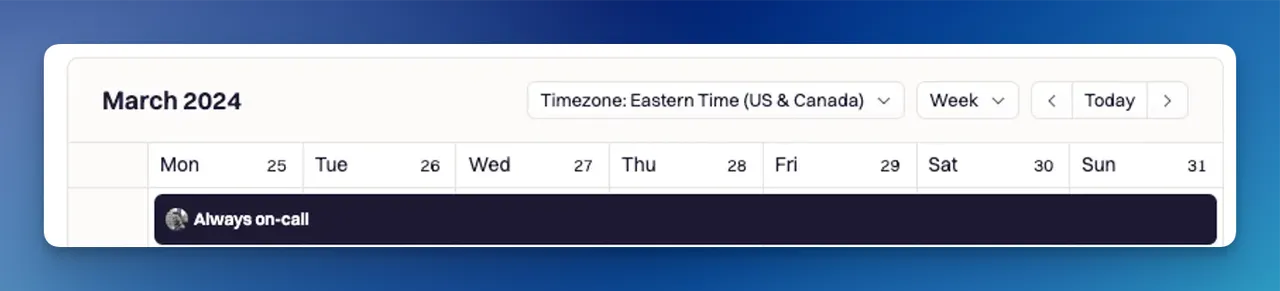
Always on-call shifts represent continuous coverage without a defined end time. These shifts appear under **Currently On-Call** and render as a solid horizontal bar across the calendar.
This pattern is commonly used for roles such as incident commanders, executive escalation paths, or safety officers who must always be reachable.
 ### Recurring On-Call Shifts
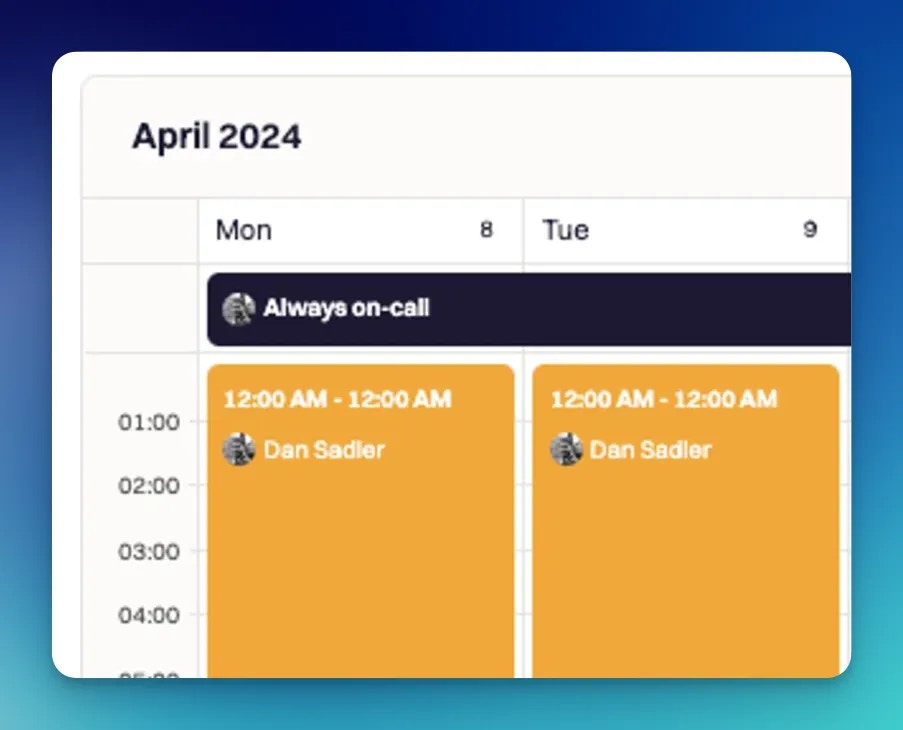
Recurring shifts are generated from rotation rules defined in schedules. These shifts appear under both **Currently On-Call** and **Upcoming On-Call**, depending on their timing, and render as vertical blocks that reflect each shift's start and end times.
### Recurring On-Call Shifts
Recurring shifts are generated from rotation rules defined in schedules. These shifts appear under both **Currently On-Call** and **Upcoming On-Call**, depending on their timing, and render as vertical blocks that reflect each shift's start and end times.
 ***
## View Shifts for Other Users
The page isn't limited to your own coverage. Pick another user from the **User** dropdown to see their shift list and calendar — the whole view updates immediately.
Managers use this to validate coverage before an on-call handoff, and responders use it to see their upcoming shifts.
***
## Spot Holiday and PTO Conflicts
Overlay a holiday calendar on the shifts view to surface schedule risk before it turns into a missed page. When a holiday or PTO event overlaps with an on-call shift, Rootly highlights the conflict directly on the calendar so the affected shifts stand out.
You can create an override right from either the holiday event or the conflicting shift — no need to navigate to the schedule editor. See [Adding a Holiday Calendar](/on-call/holiday-calendar) for setting up the overlay.
***
## Create an Override
An override temporarily reassigns coverage without editing the schedule. Use them for PTO, sick days, or last-minute cover — anything short-term that shouldn't leave a trace in the rotation itself.
Go to **On-Call → On-Call Shifts**.
Select the user whose coverage needs to change from the **User** dropdown.
Choose **Create Override**, or open a specific shift and pick **Create Override** from the shift details.
Set the time range and pick the user who will take over.
The override takes effect immediately. Overrides always beat rotation-generated shifts and are fully audited.
### Reassign or Revert an Override
Overrides are reversible. Shifts that are overrides are clearly labeled on the calendar and in the list so you can tell them apart from rotation-generated shifts.
* **Revert** restores the original assignee for that shift. Non-destructive — the underlying schedule and rotation aren't touched.
* **Reassign** hands the override to a different user. The override history is preserved in the audit trail.
Both actions are available from the shift details on the On-Call Shifts page and inside the schedule editor.
***
## Multi-Layer Schedules
Multi-layer schedules stack coverage windows on top of each other — for example, a weekday layer (Mon–Fri) plus a weekend layer (Fri–Mon).
* Each layer has its own **rotation, users, and time window**.
* Rootly evaluates layers in **priority order** — a higher-priority layer wins during its active window.
* Layer time windows must be precise. If they overlap or are misaligned, the wrong layer may be active at a given moment.
### Around-the-Sun Schedules
An around-the-sun schedule hands coverage between teams in different time zones so no one has to be paged at 4 a.m. Each region covers its own daylight hours and hands off to the next.
Sketch out each region's window in UTC first — Rootly's schedule engine works in UTC internally, even when it renders local times.
Example for three 8-hour regions:
| Region | UTC window |
| - | - |
| APAC | 00:00 – 08:00 |
| EMEA | 08:00 – 16:00 |
| NA | 16:00 – 00:00 |
Go to **On-Call → Schedules → New schedule**. Name it, pick an owner, and set the schedule timezone to **UTC** so layer windows stay easy to reason about across regions.
Choose **Add Rotation** once per region and configure each:
The region's local timezone (for example, `Asia/Bangkok` for APAC). Rootly displays shift times in the local timezone even though the schedule itself stays in UTC.
The coverage window for that region.
Daily, Weekly, Biweekly, Monthly, or Custom.
The responders in that region's rotation.
***
## Best Practices
* **Treat the shifts page as a daily dashboard.** Reviewing upcoming shifts once a week catches gaps around holidays and long weekends before they become missed pages.
* **Use overrides for short-term changes.** Avoid modifying schedules for a one-off PTO day — overrides keep your rotation logic stable.
* **Investigate every Inactive entry.** A dormant schedule is fine; a schedule that should be paging but isn't attached to an escalation policy won't reach anyone.
* **Set multi-layer window times exactly.** Overlaps between layers can activate the wrong layer.
* **Overlay the holiday calendar during planning.** It surfaces conflicts before they turn into missed pages.
***
## Frequently Asked Questions
A shift is inactive when its schedule isn't attached to any escalation policy. It's visible for planning purposes but won't page anyone. Attach the schedule to an escalation policy connected to a service or team to activate it.
No. An override temporarily replaces the on-call assignee for a specific window without altering the schedule or rotation. Once it's reverted or expires, the original schedule resumes automatically.
Overrides cannot overlap with other overrides for the same shift. Rootly enforces this to ensure paging behavior remains predictable and unambiguous.
Users with **On-Call Admin** or **On-Call User** roles can create, update, and revert overrides. Observers have read-only access.
Shifts are generated continuously from schedule rotation rules and recalculated as schedules or overrides change. What you see in **Upcoming On-Call** always reflects the latest configuration.
***
## Related Pages
Where the rotations that generate these shifts are defined.
Self-service coverage requests for when you can't take a shift.
Overlay holidays and PTO to catch conflicts before they hit.
This documentation is built and hosted on [Mintlify](https://mintlify.com), a developer documentation platform.
***
## View Shifts for Other Users
The page isn't limited to your own coverage. Pick another user from the **User** dropdown to see their shift list and calendar — the whole view updates immediately.
Managers use this to validate coverage before an on-call handoff, and responders use it to see their upcoming shifts.
***
## Spot Holiday and PTO Conflicts
Overlay a holiday calendar on the shifts view to surface schedule risk before it turns into a missed page. When a holiday or PTO event overlaps with an on-call shift, Rootly highlights the conflict directly on the calendar so the affected shifts stand out.
You can create an override right from either the holiday event or the conflicting shift — no need to navigate to the schedule editor. See [Adding a Holiday Calendar](/on-call/holiday-calendar) for setting up the overlay.
***
## Create an Override
An override temporarily reassigns coverage without editing the schedule. Use them for PTO, sick days, or last-minute cover — anything short-term that shouldn't leave a trace in the rotation itself.
Go to **On-Call → On-Call Shifts**.
Select the user whose coverage needs to change from the **User** dropdown.
Choose **Create Override**, or open a specific shift and pick **Create Override** from the shift details.
Set the time range and pick the user who will take over.
The override takes effect immediately. Overrides always beat rotation-generated shifts and are fully audited.
### Reassign or Revert an Override
Overrides are reversible. Shifts that are overrides are clearly labeled on the calendar and in the list so you can tell them apart from rotation-generated shifts.
* **Revert** restores the original assignee for that shift. Non-destructive — the underlying schedule and rotation aren't touched.
* **Reassign** hands the override to a different user. The override history is preserved in the audit trail.
Both actions are available from the shift details on the On-Call Shifts page and inside the schedule editor.
***
## Multi-Layer Schedules
Multi-layer schedules stack coverage windows on top of each other — for example, a weekday layer (Mon–Fri) plus a weekend layer (Fri–Mon).
* Each layer has its own **rotation, users, and time window**.
* Rootly evaluates layers in **priority order** — a higher-priority layer wins during its active window.
* Layer time windows must be precise. If they overlap or are misaligned, the wrong layer may be active at a given moment.
### Around-the-Sun Schedules
An around-the-sun schedule hands coverage between teams in different time zones so no one has to be paged at 4 a.m. Each region covers its own daylight hours and hands off to the next.
Sketch out each region's window in UTC first — Rootly's schedule engine works in UTC internally, even when it renders local times.
Example for three 8-hour regions:
| Region | UTC window |
| - | - |
| APAC | 00:00 – 08:00 |
| EMEA | 08:00 – 16:00 |
| NA | 16:00 – 00:00 |
Go to **On-Call → Schedules → New schedule**. Name it, pick an owner, and set the schedule timezone to **UTC** so layer windows stay easy to reason about across regions.
Choose **Add Rotation** once per region and configure each:
The region's local timezone (for example, `Asia/Bangkok` for APAC). Rootly displays shift times in the local timezone even though the schedule itself stays in UTC.
The coverage window for that region.
Daily, Weekly, Biweekly, Monthly, or Custom.
The responders in that region's rotation.
***
## Best Practices
* **Treat the shifts page as a daily dashboard.** Reviewing upcoming shifts once a week catches gaps around holidays and long weekends before they become missed pages.
* **Use overrides for short-term changes.** Avoid modifying schedules for a one-off PTO day — overrides keep your rotation logic stable.
* **Investigate every Inactive entry.** A dormant schedule is fine; a schedule that should be paging but isn't attached to an escalation policy won't reach anyone.
* **Set multi-layer window times exactly.** Overlaps between layers can activate the wrong layer.
* **Overlay the holiday calendar during planning.** It surfaces conflicts before they turn into missed pages.
***
## Frequently Asked Questions
A shift is inactive when its schedule isn't attached to any escalation policy. It's visible for planning purposes but won't page anyone. Attach the schedule to an escalation policy connected to a service or team to activate it.
No. An override temporarily replaces the on-call assignee for a specific window without altering the schedule or rotation. Once it's reverted or expires, the original schedule resumes automatically.
Overrides cannot overlap with other overrides for the same shift. Rootly enforces this to ensure paging behavior remains predictable and unambiguous.
Users with **On-Call Admin** or **On-Call User** roles can create, update, and revert overrides. Observers have read-only access.
Shifts are generated continuously from schedule rotation rules and recalculated as schedules or overrides change. What you see in **Upcoming On-Call** always reflects the latest configuration.
***
## Related Pages
Where the rotations that generate these shifts are defined.
Self-service coverage requests for when you can't take a shift.
Overlay holidays and PTO to catch conflicts before they hit.
This documentation is built and hosted on [Mintlify](https://mintlify.com), a developer documentation platform.