> ## Documentation Index
> Fetch the complete documentation index at: https://docs.rootly.com/llms.txt
> Use this file to discover all available pages before exploring further.
# Notification Rules
> Configure how and when Rootly reaches you when you're paged — via push, phone call, SMS, or email — with safeguards that prevent quietly-broken paging.
## Overview
Notification Rules define how Rootly reaches you when an alert is assigned to you. They're evaluated as an ordered sequence of steps — if an alert stays unacknowledged, Rootly moves to the next step and keeps going until someone responds or the escalation path completes.
You configure **Audible** and **Quiet** rules separately so urgent pages can behave differently from informational ones: hard-to-miss for production issues, low-noise for signals that shouldn't wake anyone up.
Open **Account Settings → Notifications → On-Call Notifications** to manage everything on this page.
***
## Delivery Methods
Rootly supports several delivery methods for notification rules, each with a slightly different purpose:
Device push intended to bypass Do Not Disturb. Use for the loudest step of an audible rule.
Device push that respects Do Not Disturb — a quiet channel.
Real-time audible channel. Use as the reach-through if push doesn't wake you.
A reliable delivery path when push or phone can't reach the device.
Suited for non-urgent notifications where audible paging isn't needed.
If you want a setup that's *reliable but not disruptive*, reserve **Critical Alerts** and **phone calls** for audible paging, and use non-critical push, SMS, or email for quiet paging.
***
## Audible Rules
Audible rules are your wake-me-up configuration — the sequence Rootly runs through when an alert needs immediate action.
Rootly enforces guardrails on audible rules because urgent paging is only useful if it *can't* be configured into a silently-broken state. In other words: Rootly won't let you save an audible policy that can't actually reach you.
### Step 1 Requirements
The first step of an audible rule must include a real-time delivery method that matches your device state:
* **If you have a connected mobile device**, Critical Alerts are required on step 1.
* **If you don't have a connected mobile device**, a phone call is required on step 1.
Rootly won't let you save a level 1 audible step that doesn't meet the requirement for your current setup, so urgent alerts can't be configured into a state where they silently fail to reach you.
### Subsequent Steps
Level 2 and beyond still need at least one of **Critical Alerts** or **Phone Call** enabled — Rootly won't let escalation become "quiet" by accident. Beyond that requirement, later steps can add SMS or email alongside Critical Alerts or a phone call.
Audible rules are validated on save. If a step doesn't meet these requirements — no Critical Alerts on step 1 with a device connected, or no phone call on step 1 without one — Rootly blocks the save until the rule is made safe.
Pair Critical Alerts with a secondary channel (SMS or email). Even when push is reliable, redundancy makes paging more resilient under real-world conditions.
***
## Quiet Rules
Quiet rules are for alerts that still matter but shouldn't force immediate interruption. They still escalate through steps, but the intent is different: keep responders informed without waking anyone up unless it's truly necessary.
Email, SMS, and non-critical push are the typical quiet channels. Non-critical push is especially useful when you want the alert on someone's phone without cutting through Do Not Disturb.
### Making Quiet Notifications Audible on a Silenced Phone
By default, Quiet push respects both Do Not Disturb and silent mode — it arrives on the phone but stays silent when the device is silenced. That's the intent.
If you want quiet pushes to **ring through silent mode and DND** without reclassifying them as audible, enable **Critical Alerts** on the device contact method *inside the Quiet notification rule itself*.
**Navigation:** Account Settings → Notifications → On-Call Notifications → the Quiet rule → the device contact method → **Critical Alerts** toggle.
On supported devices this makes the phone treat the push as a Critical Alert (bypasses silent mode and DND) while Rootly still treats the rule as Quiet for paging logic. The audible-rule constraints (step 1 requirements, phone call fallback) don't apply.
The override doesn't work in two known device configurations — confirm yours before relying on this toggle.
* **iPhone with an Apple Watch mirroring notifications** — Critical Alerts may not play sound on the iPhone itself. See the [iPhone + Apple Watch caveat](/on-call/mobile-app#push-notification) for the fix.
* **Android in a Work Profile** — Work Profile can't override system volume or Do Not Disturb at the OS level, so the Critical Alerts toggle has no effect. See the [Android Work Profile caveat](/on-call/mobile-app#push-notification) for context.
***
## Limits
* **20 rules of each type** — audible and quiet are counted separately, so 20 of each.
* A rule that would exceed the cap is refused on save with an explicit message rather than silently dropped.
***
## Test Your Notifications
The **Test Notifications** action sends test messages to the targets you've configured so you can validate delivery end-to-end. Testing is available for email, SMS, phone call, and device push — the same core methods used by notification rules.
Test any time you change phones, update a phone number, reinstall the mobile app, or want to confirm your current configuration still works.
Test at least one audible path (Critical Alerts or call) and one quiet path (email or non-critical push) after setting up notifications — before you go on call.
***
## Verification Requirements
Contact methods must be verified before they can be used for paging. Rootly enforces this so a rule that *looks* valid can't quietly fail to deliver.
* Unverified phone numbers block SMS and call configurations.
* Unverified email addresses block email configurations.
* Shift Reminders follow the same rule — reminder delivery methods must be verified when the reminder is enabled.
Verifying a phone number turns on SMS for your audible rule, limited to the channels your organization's [default notification settings](/alerts/alerts#default-notification-settings) allow. Quiet rules stay on the channels they already have — verification leaves them alone.
If you can't save notification rules or reminders, verification is the first thing to check. Unverified contact methods will block any configuration that depends on them.
***
## Shift Reminders
Shift Reminders notify you before your on-call shift starts and when it ends — separate from incident paging. Multiple delivery channels are supported and lead-time options range up to two weeks in advance when expanded options are enabled.
For the full reference — supported channels, timing tiers, nested-schedule behavior, and reminder-specific troubleshooting — see [Shift Reminders](/on-call/shift-reminders).
***
## Default Setup
If notification rules or reminders are missing, Rootly automatically creates a baseline so new responders aren't left unpaged.
With no organization-level configuration, a new user starts with email, phone call, and SMS on their audible rule, email on their quiet rule, and two shift reminders — one for shift start, one for shift end — delivered by email. These defaults are meant to be edited; they provide coverage while you finalize your own setup.
### Organization Defaults
Admins choose the channels a new user starts with, separately for audible (high urgency) and quiet (low urgency) rules. The defaults are set once, in **Alerts → Settings (top-right gear icon) → Default notification settings**, and every user created afterwards is provisioned with those channels.
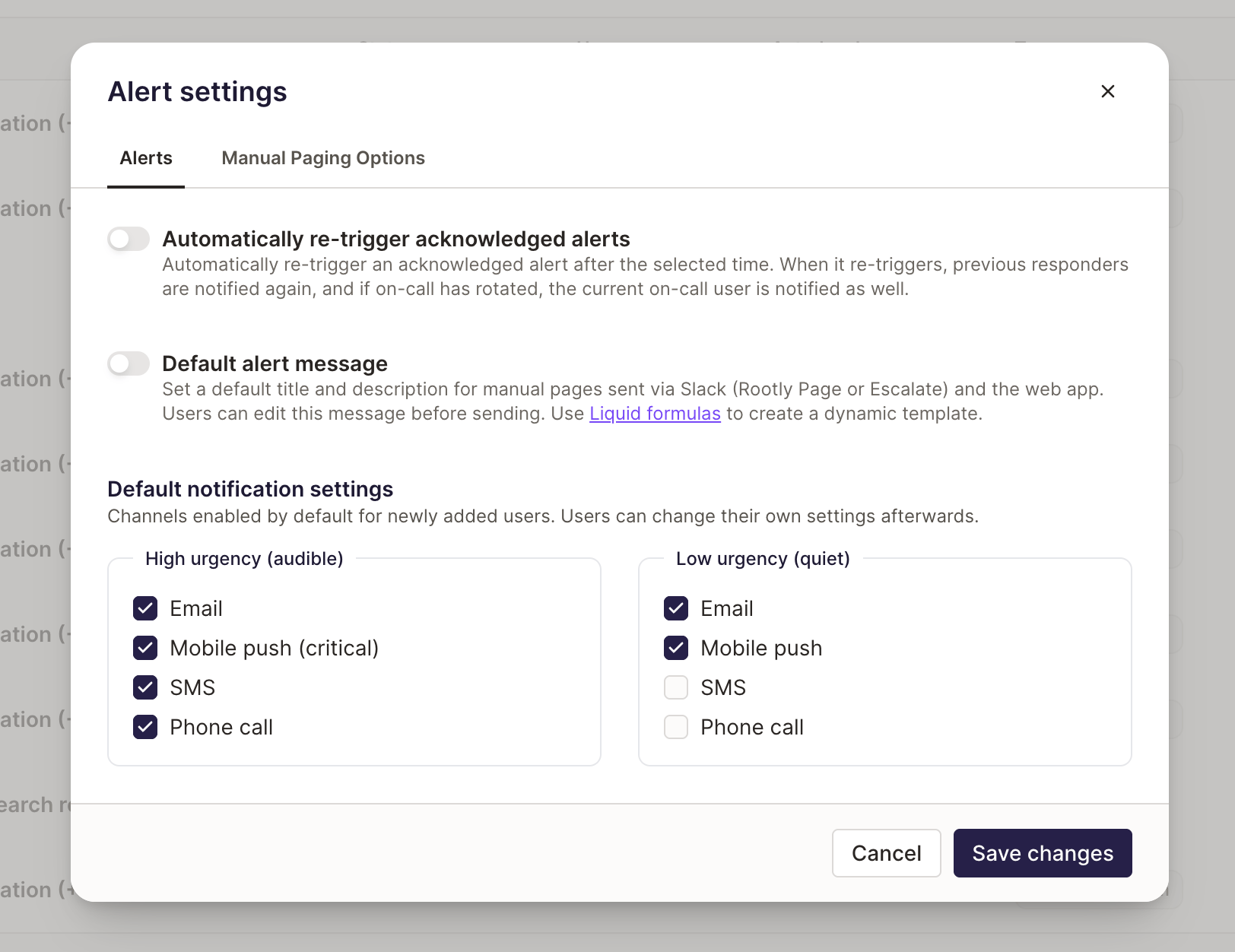 Two things follow the organization default once it's set:
* The form for adding a notification rule is pre-filled with it.
* Verifying a phone number or connecting a first mobile device turns on only the channels the default allows. The number or device is still attached to your profile, so you can turn any other channel on yourself.
Organization defaults apply to users created after the defaults are saved. Rules that already exist are never rewritten, and a default is a starting point rather than a lock — edit your own rules whenever your setup changes.
Users imported from PagerDuty or Opsgenie with an already-verified phone number start with SMS on their audible rule, matching what a user gets after verifying a phone number in Rootly.
For the admin walkthrough and the guardrails Rootly enforces, see [Default Notification Settings](/alerts/alerts#default-notification-settings).
***
## Best Practices
* **Configure an audible step that reaches you when your phone is silenced.** Then test it. This one step blocks the most common source of missed pages.
* **Pair Critical Alerts with SMS or email.** Redundancy on the first audible step is cheap insurance.
* **Reserve Critical Alerts for audible rules.** Using them on quiet rules by default trains you to ignore the DND bypass.
* **Test after every phone change.** New phone, updated phone number, or reinstalled app can affect push delivery — test to confirm.
* **Verify contact methods before your first shift.** Rootly enforces this on save, but the message reads as "why won't this save?" if you don't know why.
***
## Troubleshooting
Audible rules have strict safety requirements so urgent alerts can't be configured into a non-deliverable state. The most common causes:
* **Step 1 is missing the channel for your device state** — Critical Alerts if you have a connected mobile device, a phone call if you don't.
* **A later step dropped both Critical Alerts and Phone Call** — every audible step (not just step 1) must keep at least one of the two enabled so escalation can't become "quiet" by accident.
Notification rules and enabled shift reminders require verified contact methods. Verify the phone number or email address first, then return to On-Call Notifications and save again.
* Confirm whether you're expecting Critical Alerts (bypass DND) or non-critical push (respects DND).
* Confirm your mobile device is connected and registered.
* If you changed phones, reinstalled the app, or revoked notification permissions at the OS level, reconnect the device and restore permissions.
* Use **Test Notifications** to validate delivery immediately.
That's the default — Quiet push respects silent mode and Do Not Disturb. To make quiet pushes ring through silent mode without converting the rule to audible, enable **Critical Alerts** on the device contact method inside the Quiet rule.
See [Making Quiet Notifications Audible on a Silenced Phone](#making-quiet-notifications-audible-on-a-silenced-phone) for the full setup, including the iPhone + Apple Watch and Android Work Profile caveats.
***
## Related Pages
Pre-shift and post-shift notifications delivered on the channels you configure.
Temporarily silence your automated alert notifications during an alert storm.
See at a glance whether responders have working notification methods configured.
Set the channels new users start with, per urgency level.
This documentation is built and hosted on [Mintlify](https://mintlify.com), a developer documentation platform.
Two things follow the organization default once it's set:
* The form for adding a notification rule is pre-filled with it.
* Verifying a phone number or connecting a first mobile device turns on only the channels the default allows. The number or device is still attached to your profile, so you can turn any other channel on yourself.
Organization defaults apply to users created after the defaults are saved. Rules that already exist are never rewritten, and a default is a starting point rather than a lock — edit your own rules whenever your setup changes.
Users imported from PagerDuty or Opsgenie with an already-verified phone number start with SMS on their audible rule, matching what a user gets after verifying a phone number in Rootly.
For the admin walkthrough and the guardrails Rootly enforces, see [Default Notification Settings](/alerts/alerts#default-notification-settings).
***
## Best Practices
* **Configure an audible step that reaches you when your phone is silenced.** Then test it. This one step blocks the most common source of missed pages.
* **Pair Critical Alerts with SMS or email.** Redundancy on the first audible step is cheap insurance.
* **Reserve Critical Alerts for audible rules.** Using them on quiet rules by default trains you to ignore the DND bypass.
* **Test after every phone change.** New phone, updated phone number, or reinstalled app can affect push delivery — test to confirm.
* **Verify contact methods before your first shift.** Rootly enforces this on save, but the message reads as "why won't this save?" if you don't know why.
***
## Troubleshooting
Audible rules have strict safety requirements so urgent alerts can't be configured into a non-deliverable state. The most common causes:
* **Step 1 is missing the channel for your device state** — Critical Alerts if you have a connected mobile device, a phone call if you don't.
* **A later step dropped both Critical Alerts and Phone Call** — every audible step (not just step 1) must keep at least one of the two enabled so escalation can't become "quiet" by accident.
Notification rules and enabled shift reminders require verified contact methods. Verify the phone number or email address first, then return to On-Call Notifications and save again.
* Confirm whether you're expecting Critical Alerts (bypass DND) or non-critical push (respects DND).
* Confirm your mobile device is connected and registered.
* If you changed phones, reinstalled the app, or revoked notification permissions at the OS level, reconnect the device and restore permissions.
* Use **Test Notifications** to validate delivery immediately.
That's the default — Quiet push respects silent mode and Do Not Disturb. To make quiet pushes ring through silent mode without converting the rule to audible, enable **Critical Alerts** on the device contact method inside the Quiet rule.
See [Making Quiet Notifications Audible on a Silenced Phone](#making-quiet-notifications-audible-on-a-silenced-phone) for the full setup, including the iPhone + Apple Watch and Android Work Profile caveats.
***
## Related Pages
Pre-shift and post-shift notifications delivered on the channels you configure.
Temporarily silence your automated alert notifications during an alert storm.
See at a glance whether responders have working notification methods configured.
Set the channels new users start with, per urgency level.
This documentation is built and hosted on [Mintlify](https://mintlify.com), a developer documentation platform.