> ## Documentation Index
> Fetch the complete documentation index at: https://docs.rootly.com/llms.txt
> Use this file to discover all available pages before exploring further.
# Using Rootly AI in Slack
> Where to invoke Rootly AI in Slack, what to expect while it works, and how clarifications and write actions run.
## Where to Interact With Rootly AI
Rootly AI is added automatically to incident channels created through Rootly. Get started by declaring an incident with `/rootly new`, then mention `@Rootly` in the channel or thread and ask "catch me up" or "page the database on-call team". Rootly AI always replies in-thread.
The channel is one of three surfaces:
| Where | Can it act? | Best for |
| :- | :- | :- |
| **Incident channel** | Yes, the full action set | Running the incident: updates, paging, roles, and comms where the whole team sees them |
| **Slack assistant pane** | Questions, plus supported connector actions | Catching up on the incident in view without distracting the responding team |
| **Direct message** | Questions, plus supported connector actions | On-call lookups, incidents you're not actively in, personal questions like "What action items are assigned to me?" |
Every surface requires an [Incident Response role](/ai/rootly-in-slack/overview#who-can-use-rootly-ai-in-slack). Your Rootly permissions govern which incidents and Rootly records you can see. Data from a connector is scoped to its connected provider account; see the connector's guide for any additional Rootly permission check.
Ask questions in the incident channel when the context might be relevant to other teammates, so they can also benefit from the reply.
### Opening Each Surface
* **Incident channel.** Type `@Rootly` in the incident's Slack channel or in a thread on it. Rootly replies in-thread with the incident's context.
* **Slack assistant pane.** Click Rootly in Slack's channel sidebar or split view to open a private chat scoped to that channel. In an incident channel, the incident context is carried automatically.
* **Direct message.** Message the Rootly app directly from your Slack sidebar, or open it from Slack's **Agents & tools** sidebar tab (look under **More** if the tab isn't visible). Opens a fresh chat with no channel context.
For how Slack organizes AI agents in the sidebar, see Slack's [Work with AI agents in Slack](https://slack.com/help/articles/33076000248851-Work-with-AI-agents-in-Slack) guide.
***
## Interacting With Rootly AI
While Rootly AI works, a status indicator shows what it's doing, for example "Checking who's on call".
Replies include the answer and a confirmation of any action taken.
### Giving Feedback
Rate replies with 👍 / 👎. Feedback flows into Rootly's evaluation pipeline and does not directly fine-tune the model.
***
## Providing Clarifications
If something is ambiguous or required data is missing, Rootly AI asks rather than guesses.
| Situation | Example |
| :- | :- |
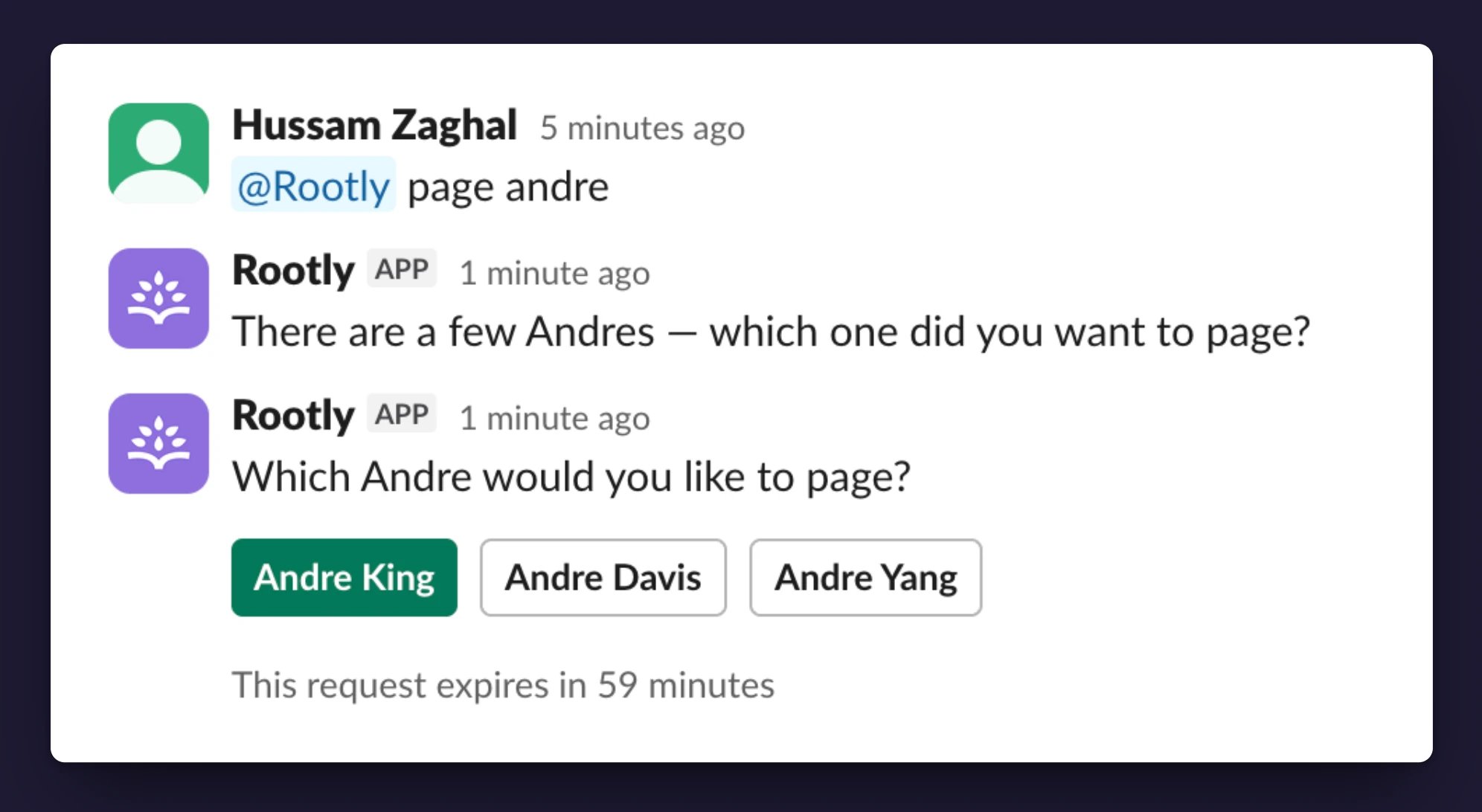
| **Ambiguous person** | "Page David." → *"Which David did you want to page?"* with options to select the right one |
| **Ambiguous severity** | "Escalate this." → *"What severity should I set?"* with buttons for the team's configured severities |
| **Missing required field** | Moving to a status that requires a cause or environment → *"What environment is affected?"* with fields for the data |
 ### Using Clarification Cards
Based on how much input Rootly AI needs, you'll be able to reply via:
| Options | How you answer |
| :- | :- |
| Up to 5 | Buttons, with the first highlighted as the primary choice |
| 5 to 25 | A single-select dropdown |
| More than 25, or no fixed answer set | Free text, replied in the thread |
Cards expire after **60 minutes**. Re-ask your question to get a fresh card.
***
## Taking Action With Rootly AI
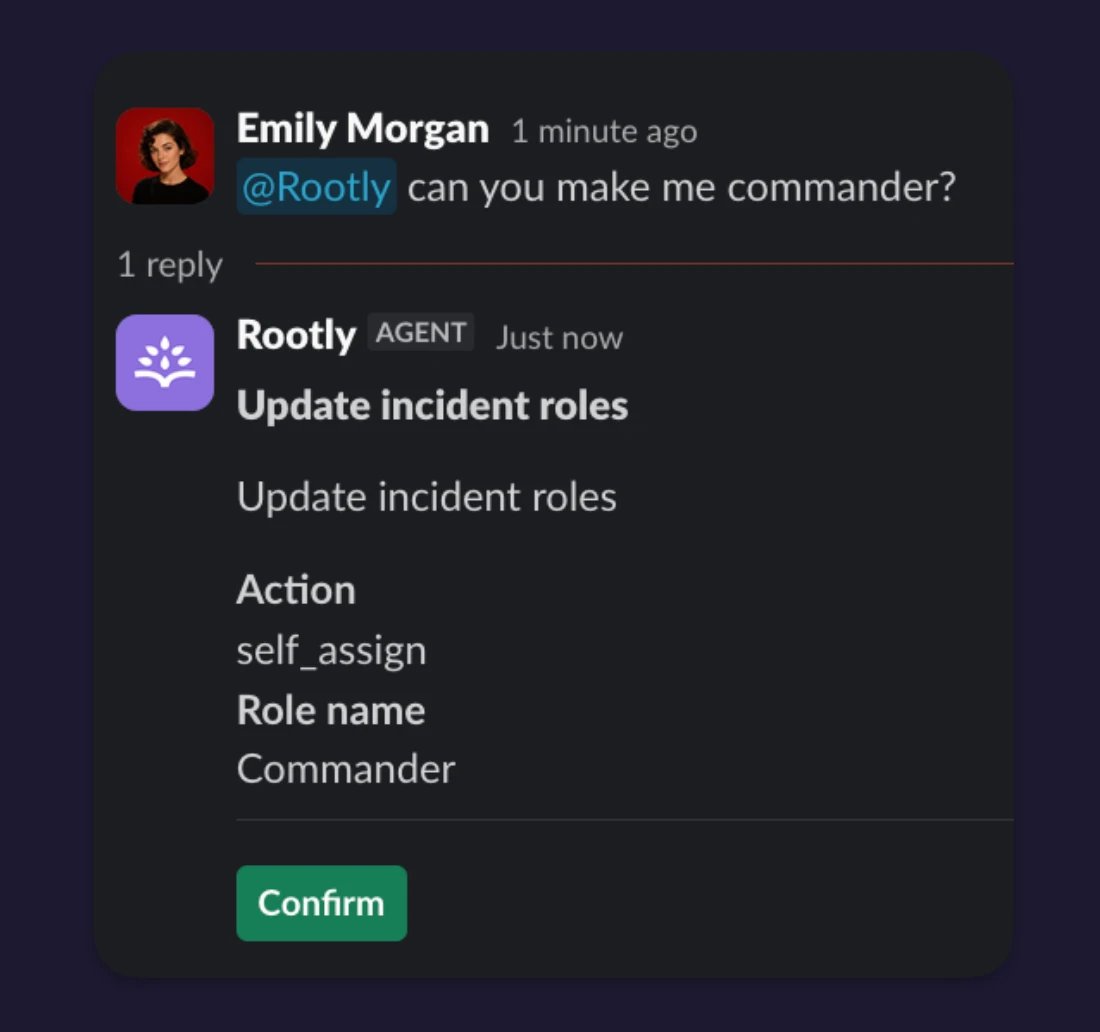
Ask for an action and Rootly AI runs it, confirming what it did in its reply. When an action is destructive, or Rootly AI wants your sign-off first, it posts the change as a card with a **Confirm** button and runs only after you approve.
| You say | Rootly AI replies |
| :- | :- |
| "I'll take commander." | *"You're now the commander."* |
| "Escalate to SEV1." | *"Set severity to SEV1."* |
| "Page the SRE on-call." | *"Paged the SRE team via their escalation policy."* |
### Using Clarification Cards
Based on how much input Rootly AI needs, you'll be able to reply via:
| Options | How you answer |
| :- | :- |
| Up to 5 | Buttons, with the first highlighted as the primary choice |
| 5 to 25 | A single-select dropdown |
| More than 25, or no fixed answer set | Free text, replied in the thread |
Cards expire after **60 minutes**. Re-ask your question to get a fresh card.
***
## Taking Action With Rootly AI
Ask for an action and Rootly AI runs it, confirming what it did in its reply. When an action is destructive, or Rootly AI wants your sign-off first, it posts the change as a card with a **Confirm** button and runs only after you approve.
| You say | Rootly AI replies |
| :- | :- |
| "I'll take commander." | *"You're now the commander."* |
| "Escalate to SEV1." | *"Set severity to SEV1."* |
| "Page the SRE on-call." | *"Paged the SRE team via their escalation policy."* |
 If anything fails, Rootly AI tells you why in the same thread.
Every Rootly-native action is capped at **your Rootly permissions** and attributed to you in the audit trail. Rootly AI cannot perform a Rootly action you couldn't perform yourself in the Rootly web app.
An AI connector can use a provider account shared by the team for both reads and actions. The AI connector's Rootly permission checks determine who may use each tool, and the connected provider account determines which provider data and operations are available. For example, every Slack AI user can use [Devin's repository tools and supported read-only platform actions](/ai/connectors/devin#slack-ai-platform-tools) against data available to the service user, while actions that change Devin resources additionally require permission to manage AI connectors.
[Private Agent](/private-agent) is an Early Preview for approved customers. If it and AI SRE are enabled for the selected team, Rootly AI can also call capabilities inside your network. The tool is offered and checked against your Rootly role, and the agent enforces its local policy. Owners and admins can use registered safe-read, sensitive-read, and write tiers; users can use safe reads. See the [Private Agent security model](/private-agent#security-model) before enabling a capability.
***
## Worked Example: Paging an On-Call Team
This shows the clarification flow in action:
* Type `@Rootly page the team` in the incident channel.
* Rootly AI searches your Rootly catalog for the team to page.
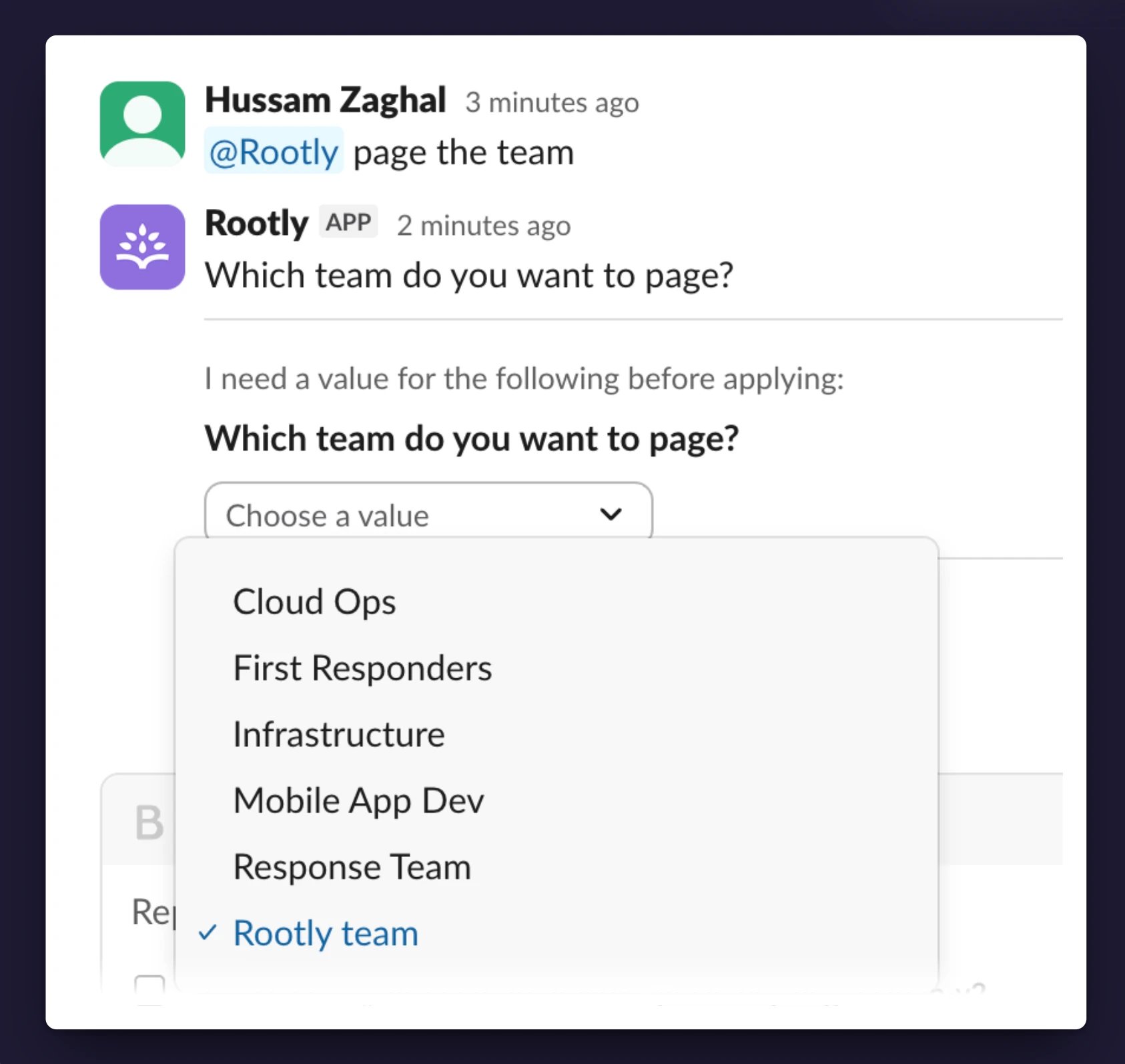
* If multiple teams match, Rootly AI posts a clarification card: `"Which team do you want to page?"` with a dropdown. You pick one and click **Confirm**.
If anything fails, Rootly AI tells you why in the same thread.
Every Rootly-native action is capped at **your Rootly permissions** and attributed to you in the audit trail. Rootly AI cannot perform a Rootly action you couldn't perform yourself in the Rootly web app.
An AI connector can use a provider account shared by the team for both reads and actions. The AI connector's Rootly permission checks determine who may use each tool, and the connected provider account determines which provider data and operations are available. For example, every Slack AI user can use [Devin's repository tools and supported read-only platform actions](/ai/connectors/devin#slack-ai-platform-tools) against data available to the service user, while actions that change Devin resources additionally require permission to manage AI connectors.
[Private Agent](/private-agent) is an Early Preview for approved customers. If it and AI SRE are enabled for the selected team, Rootly AI can also call capabilities inside your network. The tool is offered and checked against your Rootly role, and the agent enforces its local policy. Owners and admins can use registered safe-read, sensitive-read, and write tiers; users can use safe reads. See the [Private Agent security model](/private-agent#security-model) before enabling a capability.
***
## Worked Example: Paging an On-Call Team
This shows the clarification flow in action:
* Type `@Rootly page the team` in the incident channel.
* Rootly AI searches your Rootly catalog for the team to page.
* If multiple teams match, Rootly AI posts a clarification card: `"Which team do you want to page?"` with a dropdown. You pick one and click **Confirm**.
 * Rootly AI pages via Rootly On-Call to the team's current on-call, using their configured notification preferences. Rootly AI replies: `"Page request submitted to Rootly On-Call for the Rootly team."` The audit trail attributes the page to you, not to Rootly AI.
* **If you don't have permission to page in Rootly, Rootly AI tells you so and stops.**
***
## Related Pages
What Rootly AI in Slack is and everything it can do.
Turn on Rootly AI in Slack and walk through your first interaction.
The full catalog of prompts, grouped by use case.
Common symptoms and how to resolve them.
This documentation is built and hosted on [Mintlify](https://mintlify.com), a developer documentation platform.
* Rootly AI pages via Rootly On-Call to the team's current on-call, using their configured notification preferences. Rootly AI replies: `"Page request submitted to Rootly On-Call for the Rootly team."` The audit trail attributes the page to you, not to Rootly AI.
* **If you don't have permission to page in Rootly, Rootly AI tells you so and stops.**
***
## Related Pages
What Rootly AI in Slack is and everything it can do.
Turn on Rootly AI in Slack and walk through your first interaction.
The full catalog of prompts, grouped by use case.
Common symptoms and how to resolve them.
This documentation is built and hosted on [Mintlify](https://mintlify.com), a developer documentation platform.