> ## Documentation Index
> Fetch the complete documentation index at: https://docs.rootly.com/llms.txt
> Use this file to discover all available pages before exploring further.
# Getting Started
> Turn on Rootly AI in Slack with one toggle and a Slack reconnect, then run your first interaction. Covers prerequisites, scopes, and the admin steps.
## Prerequisites
* The Slack integration is installed and connected to your Rootly workspace.
* You are an Incident Response Owner or Admin with an Incident Response seat.
Once Rootly AI in Slack is on, anyone with an [Incident Response role](/ai/rootly-in-slack/overview#who-can-use-rootly-ai-in-slack) can use it.
***
## Turn On Rootly AI in Slack
Setup is one toggle in Rootly plus a Slack reconnect. Reconnecting reinstalls the app with the scopes Rootly AI needs; your existing channels and workflows are unaffected.
In Rootly, open **AI & Agents**. Confirm **Opt in to Rootly AI capabilities** is on under **Global**, then toggle **Rootly Agent in Slack** on under **Features**.
Go to **Configuration → Integrations → Slack** and click **Refresh Connection** in the banner at the top of the page. A Slack workspace admin clicks **Allow** to re-grant the scopes Rootly AI needs.
There is no need to disconnect first. Refreshing reinstalls the app with its current scopes and leaves your workspace selection, channels, Smart Defaults, and workflows intact. See [Refresh and Reconnect](/integrations/slack/slack#refresh-connection) for the full walkthrough.
***
## Your First Interaction
Rootly AI is automatically present in incident channels created by Rootly. In any channel it's a member of, type `@Rootly` and ask a question.
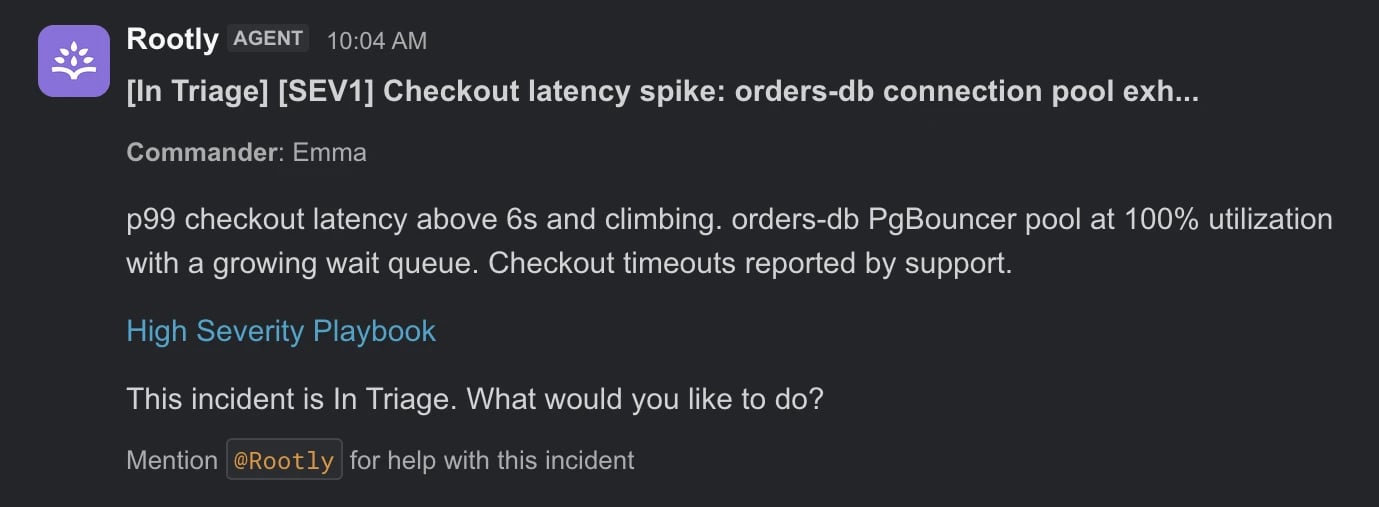 Rootly AI receives your request and responds in the same thread.
You can also talk to Rootly AI privately. Open Rootly from Slack's **Agents & tools** sidebar tab (look under **More** if the tab isn't visible), or DM the Rootly app directly. Both surfaces answer questions but cannot change Rootly records. Rootly data remains scoped to your Rootly permissions; connector data and supported external actions follow the access model in that connector's guide.
### Try These First
* "Catch me up"
* "Who's on call?"
* "Escalate to SEV1"
* "What are the open action items?"
For the full guide to each surface, see [Using Rootly AI in Slack](/ai/rootly-in-slack/using-rootly-in-slack). For the full prompt catalog, see [What to Use Rootly AI For](/ai/rootly-in-slack/what-to-use-rootly-for).
***
## Related Pages
What Rootly AI in Slack is and everything it can do.
Where to invoke Rootly AI, how clarification cards work, and how actions run.
The full catalog of prompts, grouped by use case.
Common symptoms and how to resolve them.
This documentation is built and hosted on [Mintlify](https://mintlify.com), a developer documentation platform.
Rootly AI receives your request and responds in the same thread.
You can also talk to Rootly AI privately. Open Rootly from Slack's **Agents & tools** sidebar tab (look under **More** if the tab isn't visible), or DM the Rootly app directly. Both surfaces answer questions but cannot change Rootly records. Rootly data remains scoped to your Rootly permissions; connector data and supported external actions follow the access model in that connector's guide.
### Try These First
* "Catch me up"
* "Who's on call?"
* "Escalate to SEV1"
* "What are the open action items?"
For the full guide to each surface, see [Using Rootly AI in Slack](/ai/rootly-in-slack/using-rootly-in-slack). For the full prompt catalog, see [What to Use Rootly AI For](/ai/rootly-in-slack/what-to-use-rootly-for).
***
## Related Pages
What Rootly AI in Slack is and everything it can do.
Where to invoke Rootly AI, how clarification cards work, and how actions run.
The full catalog of prompts, grouped by use case.
Common symptoms and how to resolve them.
This documentation is built and hosted on [Mintlify](https://mintlify.com), a developer documentation platform.