> ## Documentation Index
> Fetch the complete documentation index at: https://docs.rootly.com/llms.txt
> Use this file to discover all available pages before exploring further.
# Rootly AI Meeting Scribe
> The scribe joins your incident bridges, transcribes them live with speaker labels, and turns the call into a record your whole team can use.
## Overview
The bridge call is where incidents actually get solved, and the first place that context is lost. Meeting Scribe joins the bridge automatically and preserves the call as a live, searchable, speaker-labeled record attached to the incident.
Late responders catch up from the live transcript instead of interrupting the call. Transcripts flow straight into [AI Summaries](/ai/ai-summaries) and [retrospectives](/ai/ai-in-retrospectives/overview).
Supported platforms: **Zoom, Google Meet, Microsoft Teams, Webex, and GoToMeeting**.
***
## What You Get
During the call, the scribe joins as **Rootly Scribe** in the participant list, announces itself, then provides:
* **Live transcription**, streamed back to Rootly in real time with speaker identification
* **Audio recording**, and video where the platform supports it
* **Slack notifications** in the incident channel when recording starts and when the transcript is ready
* **Live context for catchup**, so `/rootly catchup` already knows what the bridge discussed
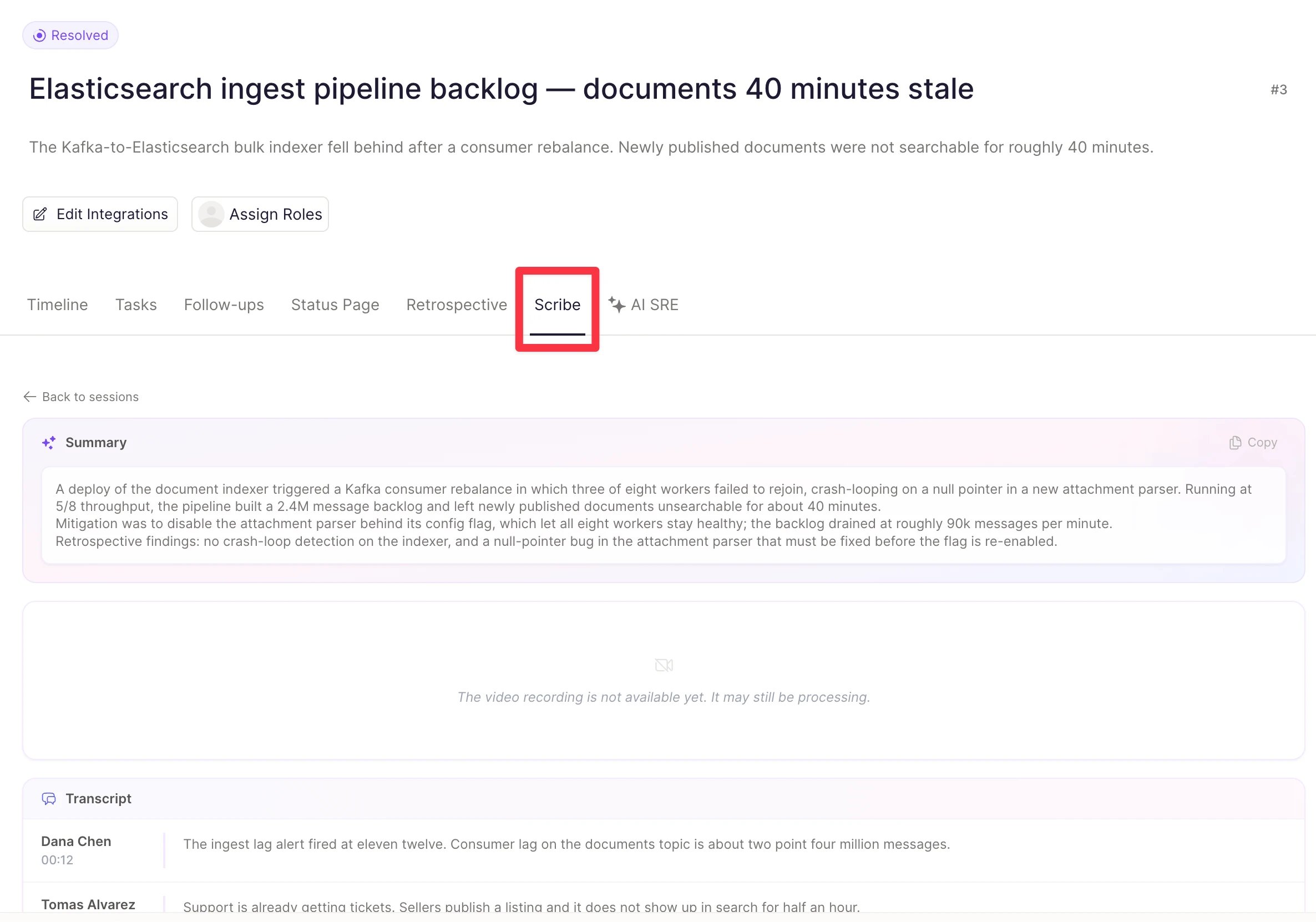
After the call, the incident's **Scribe** tab holds the full speaker-labeled transcript, a Rootly AI meeting summary of the key points and decisions, and the optional video recording. Every transcript is PII-redacted before storage across 36 categories, from credentials to personal identifiers. See [Privacy and Security](#privacy-and-security) for the Scribe-specific handling boundaries.
 ***
## Setup
Meeting Scribe rides on your existing meeting-platform integration: connect the platform, then enable the scribe toggle.
**Prefer the Rootly-generated meeting URL.** When an incident starts, Rootly creates the meeting room and pins the link in the incident's Slack channel; the scribe is created automatically for that meeting. You can also [attach a different meeting URL](/incidents/managing-incidents/updating-incident-integration-links) to the incident and the scribe will target it, but the Rootly-generated link works with zero extra steps.
Follow [Zoom → Installation](/integrations/zoom/zoom#installation) to connect your Zoom account via OAuth.
Go to **Integrations → Zoom**, then toggle on **Meeting transcript and summary**.
In the same settings pane, enable **Auto-join bot**. The scribe then joins without waiting for a host to admit it, so it never sits in a waiting room while the call starts without it.
Zoom-specific issues live at [Zoom Meeting Scribe Troubleshooting](/integrations/zoom/zoom#troubleshooting-meeting-scribe).
Follow [Google Meet → Installation](/integrations/google-meet/google-meet#installation). For production use, connect via a **Google Cloud Service Account** rather than personal OAuth: service accounts survive staff turnover and give the integration a stable identity.
Go to **Integrations → Google Meet**, then toggle on **Meeting transcript and summary**.
**Host management** in Google Workspace's Meet safety settings can hold the scribe in the waiting room. See [Google Workspace Meet safety settings block admission](/integrations/google-meet/google-meet#google-workspace-meet-safety-settings-block-admission) for the fix hierarchy.
Connect the platform, then enable **Meeting transcript and summary** under **Integrations → Microsoft Teams**.
Video meetings need the **separate** [Microsoft Teams Meeting integration](/integrations/microsoft-teams#microsoft-teams-meeting), a distinct OAuth connection with its own permissions, not the main [Microsoft Teams](/integrations/microsoft-teams) integration.
Connect [Webex](/integrations/webex/webex), then enable **Meeting transcript and summary** under **Integrations → Webex**.
Connect [GoToMeeting](/integrations/go-to-meeting), then enable **Meeting transcript and summary** under **Integrations → GoToMeeting**.
***
## Limits and Scribe Behavior
| Behavior | Detail |
| - | - |
| **Bot display name** | The scribe appears as **Rootly Scribe** in the Zoom, Google Meet, and Microsoft Teams participant list. A bot already sitting in a live call keeps its previous name until the next session, and past recordings are not relabeled. |
| **Waiting-room timeout** | Unadmitted for 10 minutes, the scribe leaves. [Re-invite it](#re-inviting-the-scribe) to start a new session. Zoom's **Auto-join bot** avoids admission entirely. |
| **Nobody-joined timeout** | If no participants show up within 5 minutes of the scribe joining, it leaves. [Re-invite it](#re-inviting-the-scribe) once responders are on the call. |
| **Recording sessions** | Each join or rejoin creates a new session, up to 10 per platform per incident. |
| **Retries** | If the meeting hasn't started, the scribe retries for a short window. After leaving for any other reason it does not auto-rejoin, so you have to [re-invite it](#re-inviting-the-scribe). |
| **Monthly usage cap** | Each team has a monthly recording cap across all platforms. Once exceeded, the scribe skips new meetings until the cap resets or an admin raises it. |
| **Google Meet credentials** | Personal OAuth is tied to one user's account and breaks when that user leaves or the token expires. Use a service account for production. |
| **Meeting URL** | The scribe joins the URL attached to the incident. URLs not attached to any incident are not picked up. |
***
## Recording Sessions
Sessions appear chronologically in the **Scribe** tab, each with its own transcript, summary, and optional video. Session numbers are per platform, so a Zoom bridge and a Google Meet bridge on the same incident each count from 1.
Every session carries the same set of controls, available from the Scribe tab and from Slack:
| Control | Effect |
| - | - |
| **Pause** | Stops capture without ending the session |
| **Resume** | Picks up in the same session, so the transcript stays continuous |
| **Stop** | Ends the session and sends the transcript for processing |
| **Remove** | Takes the scribe out of the call and ends the session |
***
## Setup
Meeting Scribe rides on your existing meeting-platform integration: connect the platform, then enable the scribe toggle.
**Prefer the Rootly-generated meeting URL.** When an incident starts, Rootly creates the meeting room and pins the link in the incident's Slack channel; the scribe is created automatically for that meeting. You can also [attach a different meeting URL](/incidents/managing-incidents/updating-incident-integration-links) to the incident and the scribe will target it, but the Rootly-generated link works with zero extra steps.
Follow [Zoom → Installation](/integrations/zoom/zoom#installation) to connect your Zoom account via OAuth.
Go to **Integrations → Zoom**, then toggle on **Meeting transcript and summary**.
In the same settings pane, enable **Auto-join bot**. The scribe then joins without waiting for a host to admit it, so it never sits in a waiting room while the call starts without it.
Zoom-specific issues live at [Zoom Meeting Scribe Troubleshooting](/integrations/zoom/zoom#troubleshooting-meeting-scribe).
Follow [Google Meet → Installation](/integrations/google-meet/google-meet#installation). For production use, connect via a **Google Cloud Service Account** rather than personal OAuth: service accounts survive staff turnover and give the integration a stable identity.
Go to **Integrations → Google Meet**, then toggle on **Meeting transcript and summary**.
**Host management** in Google Workspace's Meet safety settings can hold the scribe in the waiting room. See [Google Workspace Meet safety settings block admission](/integrations/google-meet/google-meet#google-workspace-meet-safety-settings-block-admission) for the fix hierarchy.
Connect the platform, then enable **Meeting transcript and summary** under **Integrations → Microsoft Teams**.
Video meetings need the **separate** [Microsoft Teams Meeting integration](/integrations/microsoft-teams#microsoft-teams-meeting), a distinct OAuth connection with its own permissions, not the main [Microsoft Teams](/integrations/microsoft-teams) integration.
Connect [Webex](/integrations/webex/webex), then enable **Meeting transcript and summary** under **Integrations → Webex**.
Connect [GoToMeeting](/integrations/go-to-meeting), then enable **Meeting transcript and summary** under **Integrations → GoToMeeting**.
***
## Limits and Scribe Behavior
| Behavior | Detail |
| - | - |
| **Bot display name** | The scribe appears as **Rootly Scribe** in the Zoom, Google Meet, and Microsoft Teams participant list. A bot already sitting in a live call keeps its previous name until the next session, and past recordings are not relabeled. |
| **Waiting-room timeout** | Unadmitted for 10 minutes, the scribe leaves. [Re-invite it](#re-inviting-the-scribe) to start a new session. Zoom's **Auto-join bot** avoids admission entirely. |
| **Nobody-joined timeout** | If no participants show up within 5 minutes of the scribe joining, it leaves. [Re-invite it](#re-inviting-the-scribe) once responders are on the call. |
| **Recording sessions** | Each join or rejoin creates a new session, up to 10 per platform per incident. |
| **Retries** | If the meeting hasn't started, the scribe retries for a short window. After leaving for any other reason it does not auto-rejoin, so you have to [re-invite it](#re-inviting-the-scribe). |
| **Monthly usage cap** | Each team has a monthly recording cap across all platforms. Once exceeded, the scribe skips new meetings until the cap resets or an admin raises it. |
| **Google Meet credentials** | Personal OAuth is tied to one user's account and breaks when that user leaves or the token expires. Use a service account for production. |
| **Meeting URL** | The scribe joins the URL attached to the incident. URLs not attached to any incident are not picked up. |
***
## Recording Sessions
Sessions appear chronologically in the **Scribe** tab, each with its own transcript, summary, and optional video. Session numbers are per platform, so a Zoom bridge and a Google Meet bridge on the same incident each count from 1.
Every session carries the same set of controls, available from the Scribe tab and from Slack:
| Control | Effect |
| - | - |
| **Pause** | Stops capture without ending the session |
| **Resume** | Picks up in the same session, so the transcript stays continuous |
| **Stop** | Ends the session and sends the transcript for processing |
| **Remove** | Takes the scribe out of the call and ends the session |
 ***
## Re-inviting the Scribe
The scribe does not rejoin on its own once it has left, so putting it back on the call is always a deliberate action. Every route below is held to the same permission: **update** on the incident, the same one that lets you edit the incident itself.
### Ask @Rootly
The quickest route, and the one that works from wherever the conversation already is. Mention `@Rootly` in the incident channel and ask it to re-add the meeting scribe.
***
## Re-inviting the Scribe
The scribe does not rejoin on its own once it has left, so putting it back on the call is always a deliberate action. Every route below is held to the same permission: **update** on the incident, the same one that lets you edit the incident itself.
### Ask @Rootly
The quickest route, and the one that works from wherever the conversation already is. Mention `@Rootly` in the incident channel and ask it to re-add the meeting scribe.
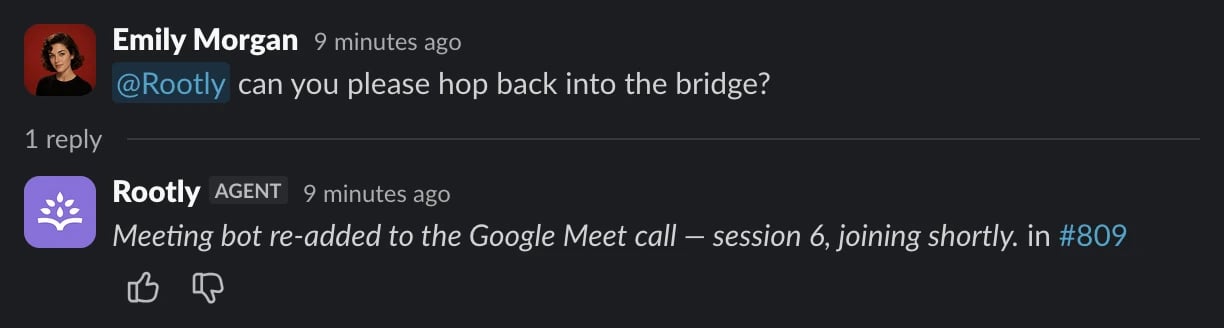 Rootly AI works out which bridge you mean, confirms the platform, and names the new session number in its reply. That number tells you the rejoin landed and how much of that platform's 10-session budget the incident has used. When the incident carries links for more than one platform and the choice is genuinely ambiguous, it asks which one you want rather than guessing.
This route needs [Rootly AI in Slack](/ai/rootly-in-slack/overview) enabled for your workspace, and it runs in the incident channel only. It can only do what you can do, so it is capped at your own Rootly permissions like every other Rootly AI action.
### Other routes
Each connected platform gets its own card with its own session list.
It reads **Invite Scribe** before the first session for that platform and **Start New Session** after. Greyed out and reading **Cannot Start Session** means something is blocking the re-invite, covered in [When re-invite is blocked](#when-re-invite-is-blocked).
Rootly confirms that a new session will be created and that previous transcripts are preserved. The new session appears in the list and the scribe joins shortly after.
Rootly AI works out which bridge you mean, confirms the platform, and names the new session number in its reply. That number tells you the rejoin landed and how much of that platform's 10-session budget the incident has used. When the incident carries links for more than one platform and the choice is genuinely ambiguous, it asks which one you want rather than guessing.
This route needs [Rootly AI in Slack](/ai/rootly-in-slack/overview) enabled for your workspace, and it runs in the incident channel only. It can only do what you can do, so it is capped at your own Rootly permissions like every other Rootly AI action.
### Other routes
Each connected platform gets its own card with its own session list.
It reads **Invite Scribe** before the first session for that platform and **Start New Session** after. Greyed out and reading **Cannot Start Session** means something is blocking the re-invite, covered in [When re-invite is blocked](#when-re-invite-is-blocked).
Rootly confirms that a new session will be created and that previous transcripts are preserved. The new session appears in the list and the scribe joins shortly after.
 When a session finishes, Rootly posts a session-complete message in the incident channel carrying a **Start New Session** button. Pressing it re-invites the scribe to that platform's call and swaps the message for a confirmation naming the new session number.
 The button is rendered only when a re-invite is possible at the moment the message is posted, so a session that ended on the 10-session cap arrives without one.
Session-complete messages thread under the first session's start message for that platform, so a long incident's sessions stay collected in one thread rather than spread down the channel.
`POST /v1/incidents/{incident_id}/meeting_recordings` invites the scribe, and re-invites it as a new session when the incident already has recordings for that platform. It returns the meeting recording, including its `session_number` and `status`.
```bash Linux theme={null}
curl -H "Authorization: Bearer " \
-X POST "https://api.rootly.com/v1/incidents//meeting_recordings?platform=google_meet"
```
`platform` falls back to `zoom` when you leave it out, so send it explicitly on any incident that is not running a Zoom bridge. Accepted values are `zoom`, `google_meet`, `microsoft_teams`, and `webex`.
### Retrying a session that captured nothing
Everything above starts a **new** session, numbered one higher than the last, with earlier transcripts left untouched. That is what re-invite means almost everywhere.
There is a second, narrower behavior for a session that ended without recording anything, such as one that timed out in a waiting room or was refused recording permission. Retrying reuses that session instead of adding another, so a dead row does not sit in the session list forever.
Find that session's card in the **Scribe** tab and press its own **Invite Scribe** button. Sessions that did record show no such button. Over the API, the same thing is `POST /v1/meeting_recordings/{id}/reinvite_bot`, which is rejected if the session holds recording data, so it cannot overwrite a transcript.
```bash Linux theme={null}
curl -H "Authorization: Bearer " \
-X POST https://api.rootly.com/v1/meeting_recordings//reinvite_bot
```
### When re-invite is blocked
| What you see | What it means | What to do |
| - | - | - |
| Scribe is already in the call | A session is live or paused for that platform | One scribe per platform per incident at a time. Stop that session before starting another |
| All 10 sessions used | The incident hit the per-platform session cap | The cap is per incident and does not reset. Move to another platform's bridge on the same incident, or to a new incident |
| No video call link | The incident carries no meeting link at all | [Attach a meeting URL](/incidents/managing-incidents/updating-incident-integration-links) to the incident |
| The call link is not usable | A link is set, but it is not a valid URL | Fix the link on the incident, then re-invite |
| No link for that platform | You named a platform the incident has no link for | Use the platform the incident actually carries |
| More than one call link | Rootly cannot tell which bridge you mean | Name the platform when you ask, for example "re-add the scribe to the Zoom call" |
An invite that never reached the recording service at all does not count against the 10-session cap, so a failed attempt does not cost you a session.
***
## Multilingual Support
The scribe transcribes 20+ languages, auto-detecting the language spoken and producing the transcript in it. Your Rootly account team enables it for your workspace.
***
## Privacy and Security
**The short version:**
| Guarantee | Detail |
| - | - |
| **Redacted before storage** | Every transcript passes PII redaction across 36 categories before it is stored. |
| **Scoped access** | Meeting data is visible only within the associated incident and team, with audit logging on deletions. |
| **No retention at AssemblyAI or OpenAI** | Neither keeps data after processing. Recall.ai media retention is managed separately by Rootly. |
| **You control deletion** | Recordings and transcripts can be deleted from the **Scribe** tab at any time. |
### Processing and storage flow
1. Recall.ai joins the meeting and captures the audio and, where supported, video.
2. Recall.ai sends the audio to AssemblyAI with transcript PII redaction enabled. Rootly requests all 36 supported redaction categories before accepting the transcript for storage.
3. Rootly stores the redacted, speaker-labeled transcript with the incident. If video recording is enabled, Rootly also attaches a copy of the recording to the Scribe session. Rootly sends the redacted transcript through its managed model path to produce the meeting summary.
4. AssemblyAI and OpenAI don't retain the data after processing. Recall.ai media follows a separate Rootly-managed retention setting; some teams are configured to delete that provider copy after transcript processing. Deleting the provider copy doesn't remove the transcript or an attached recording already stored in Rootly.
5. Rootly doesn't currently apply an automatic expiry to stored Meeting Scribe transcripts. Delete a transcript or recording from the **Scribe** tab when you no longer need it.
Rootly requests redaction for account numbers, banking information, blood types, credit-card verification values, credit-card expiration dates, credit-card numbers, dates, dates of birth, driver's licenses, drugs, email addresses, events, gender and sexuality, healthcare numbers, injuries, IP addresses, languages, locations, medical conditions, medical processes, money amounts, nationalities, number sequences, occupations, organizations, passport numbers, passwords, ages, names, phone numbers, political affiliations, religions, URLs, US Social Security numbers, usernames, and vehicle IDs.
When Rootly AI uses an attached transcript as investigation or conversational context, the separate agent retention and processing boundaries apply. See [Data Privacy for Rootly AI](/ai/data-privacy-for-rootly-ai).
***
## Troubleshooting
For platform-specific issues, start with the dedicated pages:
Auto-join, waiting rooms, host controls, and Zoom-specific failure modes.
Service account setup, admin console settings, and admission failures.
Check in order: the meeting URL is attached to the incident (the pinned Rootly-generated link works out of the box; a manually added URL must be [attached to the incident](/incidents/managing-incidents/updating-incident-integration-links)); **Meeting transcript and summary** is toggled on under **Integrations → \[platform]**; and the scribe is being admitted. Zoom without Auto-join needs a human to admit it, and Google Meet Host management can hold it in the waiting room even with a service account.
One of the two timeouts fired. Either no one admitted the scribe within 10 minutes, or it got in and no responders joined within 5. [Re-invite the scribe](#re-inviting-the-scribe) by whichever route is closest to hand, and enable Zoom Auto-join to prevent the first case.
Post-meeting processing takes a few minutes. Check the **Scribe** tab and refresh. Past 10 minutes with nothing, confirm the scribe actually recorded: there should be a *Recording started* event in the incident timeline.
The incident is probably carrying a personal meeting room or a manually generated link. The scribe is scoped to the meeting attached to the incident. Start a fresh meeting from the incident's Slack channel, then [re-invite the scribe](#re-inviting-the-scribe).
Your team exceeded its monthly recording cap. Ask your Rootly admin to review usage or raise the limit.
***
## Related Pages
How Rootly AI can use an attached transcript, including retention and processing boundaries.
Where transcripts turn into summaries and catchups.
Bridge transcripts as retrospective source material.
This documentation is built and hosted on [Mintlify](https://mintlify.com), a developer documentation platform.
The button is rendered only when a re-invite is possible at the moment the message is posted, so a session that ended on the 10-session cap arrives without one.
Session-complete messages thread under the first session's start message for that platform, so a long incident's sessions stay collected in one thread rather than spread down the channel.
`POST /v1/incidents/{incident_id}/meeting_recordings` invites the scribe, and re-invites it as a new session when the incident already has recordings for that platform. It returns the meeting recording, including its `session_number` and `status`.
```bash Linux theme={null}
curl -H "Authorization: Bearer " \
-X POST "https://api.rootly.com/v1/incidents//meeting_recordings?platform=google_meet"
```
`platform` falls back to `zoom` when you leave it out, so send it explicitly on any incident that is not running a Zoom bridge. Accepted values are `zoom`, `google_meet`, `microsoft_teams`, and `webex`.
### Retrying a session that captured nothing
Everything above starts a **new** session, numbered one higher than the last, with earlier transcripts left untouched. That is what re-invite means almost everywhere.
There is a second, narrower behavior for a session that ended without recording anything, such as one that timed out in a waiting room or was refused recording permission. Retrying reuses that session instead of adding another, so a dead row does not sit in the session list forever.
Find that session's card in the **Scribe** tab and press its own **Invite Scribe** button. Sessions that did record show no such button. Over the API, the same thing is `POST /v1/meeting_recordings/{id}/reinvite_bot`, which is rejected if the session holds recording data, so it cannot overwrite a transcript.
```bash Linux theme={null}
curl -H "Authorization: Bearer " \
-X POST https://api.rootly.com/v1/meeting_recordings//reinvite_bot
```
### When re-invite is blocked
| What you see | What it means | What to do |
| - | - | - |
| Scribe is already in the call | A session is live or paused for that platform | One scribe per platform per incident at a time. Stop that session before starting another |
| All 10 sessions used | The incident hit the per-platform session cap | The cap is per incident and does not reset. Move to another platform's bridge on the same incident, or to a new incident |
| No video call link | The incident carries no meeting link at all | [Attach a meeting URL](/incidents/managing-incidents/updating-incident-integration-links) to the incident |
| The call link is not usable | A link is set, but it is not a valid URL | Fix the link on the incident, then re-invite |
| No link for that platform | You named a platform the incident has no link for | Use the platform the incident actually carries |
| More than one call link | Rootly cannot tell which bridge you mean | Name the platform when you ask, for example "re-add the scribe to the Zoom call" |
An invite that never reached the recording service at all does not count against the 10-session cap, so a failed attempt does not cost you a session.
***
## Multilingual Support
The scribe transcribes 20+ languages, auto-detecting the language spoken and producing the transcript in it. Your Rootly account team enables it for your workspace.
***
## Privacy and Security
**The short version:**
| Guarantee | Detail |
| - | - |
| **Redacted before storage** | Every transcript passes PII redaction across 36 categories before it is stored. |
| **Scoped access** | Meeting data is visible only within the associated incident and team, with audit logging on deletions. |
| **No retention at AssemblyAI or OpenAI** | Neither keeps data after processing. Recall.ai media retention is managed separately by Rootly. |
| **You control deletion** | Recordings and transcripts can be deleted from the **Scribe** tab at any time. |
### Processing and storage flow
1. Recall.ai joins the meeting and captures the audio and, where supported, video.
2. Recall.ai sends the audio to AssemblyAI with transcript PII redaction enabled. Rootly requests all 36 supported redaction categories before accepting the transcript for storage.
3. Rootly stores the redacted, speaker-labeled transcript with the incident. If video recording is enabled, Rootly also attaches a copy of the recording to the Scribe session. Rootly sends the redacted transcript through its managed model path to produce the meeting summary.
4. AssemblyAI and OpenAI don't retain the data after processing. Recall.ai media follows a separate Rootly-managed retention setting; some teams are configured to delete that provider copy after transcript processing. Deleting the provider copy doesn't remove the transcript or an attached recording already stored in Rootly.
5. Rootly doesn't currently apply an automatic expiry to stored Meeting Scribe transcripts. Delete a transcript or recording from the **Scribe** tab when you no longer need it.
Rootly requests redaction for account numbers, banking information, blood types, credit-card verification values, credit-card expiration dates, credit-card numbers, dates, dates of birth, driver's licenses, drugs, email addresses, events, gender and sexuality, healthcare numbers, injuries, IP addresses, languages, locations, medical conditions, medical processes, money amounts, nationalities, number sequences, occupations, organizations, passport numbers, passwords, ages, names, phone numbers, political affiliations, religions, URLs, US Social Security numbers, usernames, and vehicle IDs.
When Rootly AI uses an attached transcript as investigation or conversational context, the separate agent retention and processing boundaries apply. See [Data Privacy for Rootly AI](/ai/data-privacy-for-rootly-ai).
***
## Troubleshooting
For platform-specific issues, start with the dedicated pages:
Auto-join, waiting rooms, host controls, and Zoom-specific failure modes.
Service account setup, admin console settings, and admission failures.
Check in order: the meeting URL is attached to the incident (the pinned Rootly-generated link works out of the box; a manually added URL must be [attached to the incident](/incidents/managing-incidents/updating-incident-integration-links)); **Meeting transcript and summary** is toggled on under **Integrations → \[platform]**; and the scribe is being admitted. Zoom without Auto-join needs a human to admit it, and Google Meet Host management can hold it in the waiting room even with a service account.
One of the two timeouts fired. Either no one admitted the scribe within 10 minutes, or it got in and no responders joined within 5. [Re-invite the scribe](#re-inviting-the-scribe) by whichever route is closest to hand, and enable Zoom Auto-join to prevent the first case.
Post-meeting processing takes a few minutes. Check the **Scribe** tab and refresh. Past 10 minutes with nothing, confirm the scribe actually recorded: there should be a *Recording started* event in the incident timeline.
The incident is probably carrying a personal meeting room or a manually generated link. The scribe is scoped to the meeting attached to the incident. Start a fresh meeting from the incident's Slack channel, then [re-invite the scribe](#re-inviting-the-scribe).
Your team exceeded its monthly recording cap. Ask your Rootly admin to review usage or raise the limit.
***
## Related Pages
How Rootly AI can use an attached transcript, including retention and processing boundaries.
Where transcripts turn into summaries and catchups.
Bridge transcripts as retrospective source material.
This documentation is built and hosted on [Mintlify](https://mintlify.com), a developer documentation platform.